Key takeaways
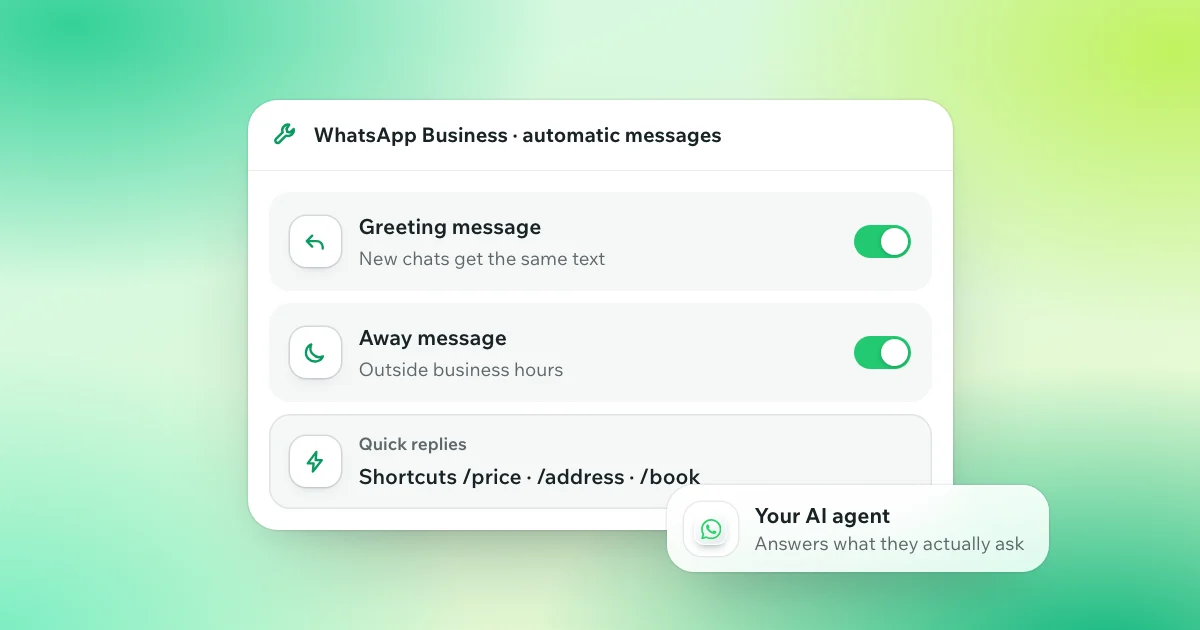
- Regular WhatsApp has no auto reply. The free WhatsApp Business app has three tools in its Tools tab: a greeting message, an away message and up to 50 quick replies.
- The greeting message goes to people who write for the first time, or after 14 days without a message; the away message follows a schedule, such as outside your business hours.
- Both send the same text to everyone, are set on the phone only, and need the phone online to go out.
- On the WhatsApp Business API, auto replies come from your own software or a provider’s. Since 1 October 2026, Meta bills service replies past 1,000 a month per number.
- An away message says when you will answer. WhatSetter puts an AI agent on your current number that answers the question, qualifies the lead and books the appointment, 24/7.
On this page
- Can you set an auto reply on WhatsApp?
- How to set up automatic messages in WhatsApp Business
- Can you set an auto reply on a personal WhatsApp?
- WhatsApp auto reply examples you can copy
- Automatic replies on the WhatsApp Business API
- Where a fixed auto reply stops, and an AI agent starts
- How to set up WhatsApp auto replies with WhatSetter
- Which one should you choose?
- Questions, answered.
It is 11:47 pm. Someone has just found your business, tapped the WhatsApp button and asked how much a membership costs. You are asleep. By the morning, they may have signed up somewhere else, not because your answer was wrong, but because it came eight hours late.
A WhatsApp auto reply is a message your number sends without you typing it. The WhatsApp Business app has three built-in tools, for free: a greeting message for new chats, an away message when you are not available, and quick replies you insert with a shortcut. They send the same text to everyone. To answer what people actually ask, you need software on the WhatsApp Business API, or an AI agent on your number.
Here is how each works, how to set them up on Android and iPhone, eight examples you can copy, the rules of the API, and where a fixed message stops.
Can you set an auto reply on WhatsApp?
Yes, in the WhatsApp Business app, and not in regular WhatsApp. From there, you have three levels, and they do not solve the same problem.
| Option | What it does | Where it stops | Price |
|---|---|---|---|
| The WhatsApp Business app | A greeting message for new chats, an away message on a schedule, and up to 50 quick replies you insert with “/” | The same words for everyone: it cannot read a question, let alone answer it | Free |
| The WhatsApp Business API | Replies sent by your own software or a provider’s chatbot, through Meta’s Business Platform | A chatbot follows the paths you draw; templates need Meta’s approval, and Meta bills per message | A provider’s plan, plus Meta’s fees per message |
| WhatSetter: an AI agent on your current number | Reads each message, answers it with your information, qualifies the lead and books the appointment | It works within what you allow; when you reply from your phone, it steps back for that lead | From $119 a month, with a 7-day free trial and no per-message fees |
The first level is free and takes ten minutes. The second is for developers and companies that send notifications at volume. The third is for businesses whose chats are leads: people who ask a question before they buy, book or sign up.
How to set up automatic messages in WhatsApp Business
The WhatsApp Business app is free, installs like regular WhatsApp and runs on your own number. Its automatic tools live in the Tools tab, on Android and on iPhone. Older guides send you to Settings, then Business tools: that menu has moved. You set them on the phone; WhatsApp Web and the desktop apps cannot.
The greeting message
It goes out when someone writes to you for the first time, and again when they write after 14 days without a message in that chat. Someone who wrote last week gets nothing. To set it up: Tools, then Greeting message. Turn on “Send greeting message”, tap the message to write yours, then choose the recipients and save.
The away message
It answers everyone who writes while you are away. Tools, then Away message: turn on “Send away message”, write the message, then pick a schedule.
- Always send, for a holiday or a closure.
- Custom schedule, between two dates and times you choose.
- Outside of business hours, which appears once your hours are set: Tools, then Profile, then Business hours.
Then choose the recipients and save.
Who receives them
Both messages offer the same four choices: Everyone; Everyone not in address book (“Exclude my contacts” on iPhone), so friends and regular clients are spared; Everyone except…; and Only send to…, a list of contacts you pick.
Quick replies
Not automatic, but the fastest way to answer by hand. Tools, then Quick replies, then +: write the message, give it a shortcut and save. In a chat, type “/” to see your quick replies and tap one. You can keep up to 50, with images or videos. A shortcut starts with “/”, has no spaces and 25 characters at most. On WhatsApp Web and the desktop apps, quick replies work without their media.
Why an away message does not go out
WhatsApp’s help pages give the usual causes: the recipients setting leaves the person out, the schedule does not cover that moment, the greeting’s 14-day rule, or a phone without internet, since the device must be online for these messages to go out. Turn the message off and on again, update the app and restart the phone.
How to turn them off
Go back to Tools, open the greeting or the away message and turn off its switch. Quick replies are deleted one by one, and a deleted quick reply cannot be recovered.
Keyword replies, outside Europe
Connected to Meta Business Suite, a WhatsApp Business account gets a few more automations on a computer, in Inbox, then Automations: answers to frequently asked questions, and up to five custom keywords, matched exactly and answered after 15 minutes unless you reply first. This connection is not available in the European Union, the EEA or the United Kingdom, among other countries. In France or Spain, the free tools stop at the app’s own.
It answers your leads in seconds, qualifies them and books the call, 24/7.
Try 7 days freeTalk to our agentCan you set an auto reply on a personal WhatsApp?
No. Regular WhatsApp has no greeting message, no away message and no quick replies: these tools only exist in the WhatsApp Business app. Moving to it is free, and it keeps your number and your chats.
- Back up your chats in WhatsApp, to be safe.
- Install WhatsApp Business. It recognises the number you use in WhatsApp and offers to use it. On Android, allow it to access your chat history and media.
- Confirm with the 6-digit code sent by text message.
One thing to do first: contacts saved inside WhatsApp only, rather than in your phone’s address book, do not move to the Business app yet. Save them to your phone before you switch. The two apps cannot use the same number at the same time, and you can move back later.
Some Android apps promise auto replies on regular WhatsApp by reading your notifications and answering through them. They are not WhatsApp apps, and WhatsApp’s terms list “auto-messaging” among the uses they do not allow. For a business, the Business app is the place to start.
WhatsApp auto reply examples you can copy
Good automatic messages say what happens next, then ask one question. A question gets a reply, and a reply is a conversation you can lead somewhere. Eight to adapt, written for Atlas Gym, a fictional gym in Lyon.
Greeting messages
- Welcome: “Hi, thanks for writing to Atlas Gym! Is it about a membership, a class or something else? Tell me and I’ll send you the right answer.”
- After an ad: “Thanks for your interest in our free trial session! Morning or evening, which suits you best?”
Away messages
- Out of hours: “Thanks for your message! We’re closed right now and back at 8 am. Our prices and class times are on our website. Leave your question here and we’ll answer it first thing.”
- Holidays: “We’re closed from 24 to 26 December, and back on the 27th at 8 am. Your message is safe: it will be the first one we answer.”
- Busy: “Thanks for waiting! We answer messages in the order they arrive. Tell us what it’s about, and we’ll come back to you with the answer.”
Quick replies
- Price, shortcut /price: “A membership costs €39 a month, with no commitment, and your first session is free. Would you like to try it this week?”
- Address, shortcut /address: “We’re 2 minutes from Part-Dieu station, and parking is free for members, right in front of the club. Shall I send you the location?”
- Booking, shortcut /book: “You can book your free session here: [your booking link]. Which day works for you?”
The away message is where leads slip away: it says when you will answer, and someone who writes at 11 pm may not wait until 8 am. Keep the promise in it short and true, and give people something to do in the meantime.
Automatic replies on the WhatsApp Business API
The WhatsApp Business API, which Meta calls the Business Platform, does nothing on its own. Meta sends each incoming message to a server, yours or a provider’s, and that software decides what to answer. That is where chatbots with buttons and menus live, and the rules are Meta’s.
- 24 hours to answer freely. Each message from a customer opens a 24-hour customer service window. Inside it, your software can reply with any message. Once it closes, only a template approved by Meta can go out.
- Templates to write first. A conversation you start, or a message after the window, needs an approved template: marketing, utility or authentication.
- A way to reach a person. Meta allows automation inside the window as long as the customer has a clear path to a human: a transfer in the chat, a phone number or an email.
- Buttons and menus. A reply can carry up to 3 buttons, or a list of up to 10 options. In WhatsApp Manager, you can add up to 4 ice breakers, prompts people tap the first time they chat with you, and up to 30 commands, shown when they type “/”.
Then there is the bill. Meta charges per delivered message. Since 1 October 2026, it bills the service replies past the first 1,000 a month per number, and the utility templates sent inside the window, which were free before. Marketing and authentication templates are billed as they were. Our guide to WhatsApp Business API pricing gives the rates by country.
A number can also run in the Business app and on the API at the same time, through a provider: Meta calls it coexistence. You keep answering from the app, and its greeting and away messages keep working there, but not on the API side. Broadcast lists become read-only in the app, and up to six months of chats are synced.
Where a fixed auto reply stops, and an AI agent starts
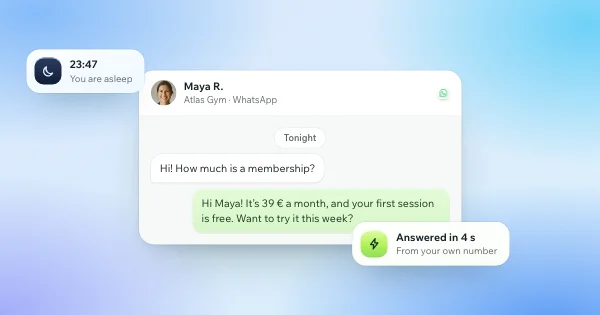
Take Maya, who writes to Atlas Gym, our fictional gym, at 11:47 pm.
“Hi! How much is a membership?”
With an away message, she gets the gym’s hours and a promise: someone will answer at 8 am. Her question waits all night, and so does she, unless another gym answers first.
With an AI agent on the gym’s number, the answer arrives in seconds:
“Hi Maya! It’s €39 a month, and your first session is free. Want to try it this week?”
Maya says yes. The agent offers three real free slots from the gym’s calendar, books the one she picks and confirms it in the chat, and Maya moves to “appointment booked” in the inbox. If she asks about parking, or sends a voice message, the agent answers that too, from the gym’s own information.
That is the whole difference: an away message says when you will answer; an AI agent answers. It writes in the lead’s language, among 43, asks your qualifying questions and follows up if the lead goes quiet. Our article on speed to lead explains why those first minutes matter.
How to set up WhatsApp auto replies with WhatSetter
WhatSetter puts an AI agent on the WhatsApp number you already use. It is not a Business Platform provider: it connects your number through its own gateway, by QR code, as a linked device. That is why there are no templates to get approved and no per-message fees, and why your WhatsApp app keeps working.
- Create your agent from your website. Give it your site, a PDF or a short description: it writes its prompt, its first message, its follow-ups and its knowledge base itself. Choose its goal: book an appointment, hand over to a person, send a payment link or answer customers.
- Connect your number. In WhatsApp on the phone, open Linked devices, tap Link a device and scan the QR code in the dashboard, or type an 8-character code instead. Use a number for your business, such as your WhatsApp Business number, rather than your personal one.
- Set your criteria and your calendar. Your qualifying questions, and Calendly, Cal.com, GoHighLevel or iClosed for the bookings: the agent offers real free slots and books without leaving the chat.
- Test it, then turn it on. The Test tab runs the same engine as your live agent: write to it as a lead would, and see why it answered what it did.
Four details matter on a busy number.
- Your phone can be off. The agent answers anyway. Open WhatsApp on the phone at least once every two weeks, or WhatsApp unlinks the device.
- You can answer yourself. Reply to a lead from the phone, and the AI steps back for that lead until you hand the conversation back in the inbox.
- One message, not two. Turn off the app’s greeting and away messages once the agent is on, or a lead gets both.
- Your number is protected. First messages to new contacts are capped each day and ramp up over time, the agent waits 30 minutes after a connection before writing first, messages go out one at a time, and you get an alert if the number disconnects. Replies to people who write to you are never held back. No tool can promise that a number will never be restricted, and WhatSetter does not: WhatsApp alone sets its limits.
Your WhatsApp number, with an AI setter that answers every lead. WhatSetter connects the number you already use in a minute: no templates to get approved, no per-message fees, and the same agent answers, qualifies and books on WhatsApp, Instagram and Messenger. Starter costs $119 a month, or $95 billed yearly, with a 7-day free trial. See WhatSetter on WhatsApp
Which one should you choose?
- A few chats a day, mostly during your hours: the Business app is enough. Set a greeting, an away message for the evenings and a few quick replies.
- Order updates, reminders and notifications at volume, with a developer or a provider: the Business API, with its templates and Meta’s fees per message.
- Leads who ask before they buy or book, often outside your hours: an AI agent on your number. It answers in seconds, 24/7, qualifies the lead and books the appointment.
To go further, our guide to the AI appointment setter on WhatsApp shows how the booking works step by step, and our Instagram auto reply guide does the same for DMs.
Questions, answered.
How do I set an automatic reply on WhatsApp?
In the WhatsApp Business app: Tools, then Away message, turn on “Send away message”, write the message, choose a schedule and the recipients, and save. The greeting message, in the same Tools tab, answers people who write for the first time or after 14 days.
Can I set an auto reply on regular WhatsApp?
No. Greeting messages, away messages and quick replies only exist in the WhatsApp Business app. Moving to it is free and keeps your number and your chats; save the contacts stored only in WhatsApp to your phone first.
Why is my WhatsApp away message not sending?
Check the schedule, the recipients setting and the phone’s internet connection: WhatsApp says the device must be online for away and greeting messages to go out. A greeting message only goes to a first chat, or after 14 days without messages. Then turn the message off and on, update the app and restart the phone.
Does the WhatsApp Business greeting message go to everyone?
To everyone who writes to you for the first time, or after 14 days without a message in that chat, unless you limit the recipients: everyone not in your address book, everyone except some contacts, or only the contacts you choose.
Can I set WhatsApp automatic messages from my computer?
Not the greeting or the away message: WhatsApp Web and the desktop apps cannot set them, only the phone can. Quick replies work on a computer, without their images or videos. Outside the EU, the EEA and the UK, Meta Business Suite adds keyword replies on a computer.
How do I turn off automatic messages in WhatsApp Business?
Tools, then Greeting message or Away message, and turn off the switch. A tool connected to your number is turned off in the tool itself.
Do WhatsApp automatic replies cost anything?
In the Business app, no: greeting messages, away messages and quick replies are free. On the Business API, Meta bills per delivered message: since 1 October 2026, service replies past 1,000 a month per number and utility templates sent inside the window are billed, on top of the provider’s plan. WhatSetter has no per-message fees.
Can an AI answer my WhatsApp messages?
Yes. WhatSetter connects your current number by QR code, and its AI agent answers each lead in seconds, 24/7, with your information and in the lead’s language. It asks your qualifying questions and books the appointment in your calendar. When you reply from your phone, it steps back for that lead.
Something else? Write to us, or ask our agent on WhatsApp.
Words used in this article